
Adding Repositories
Connect GitHub repositories and configure test settings.
Before you can run tests, you need to add a repository and configure its settings.
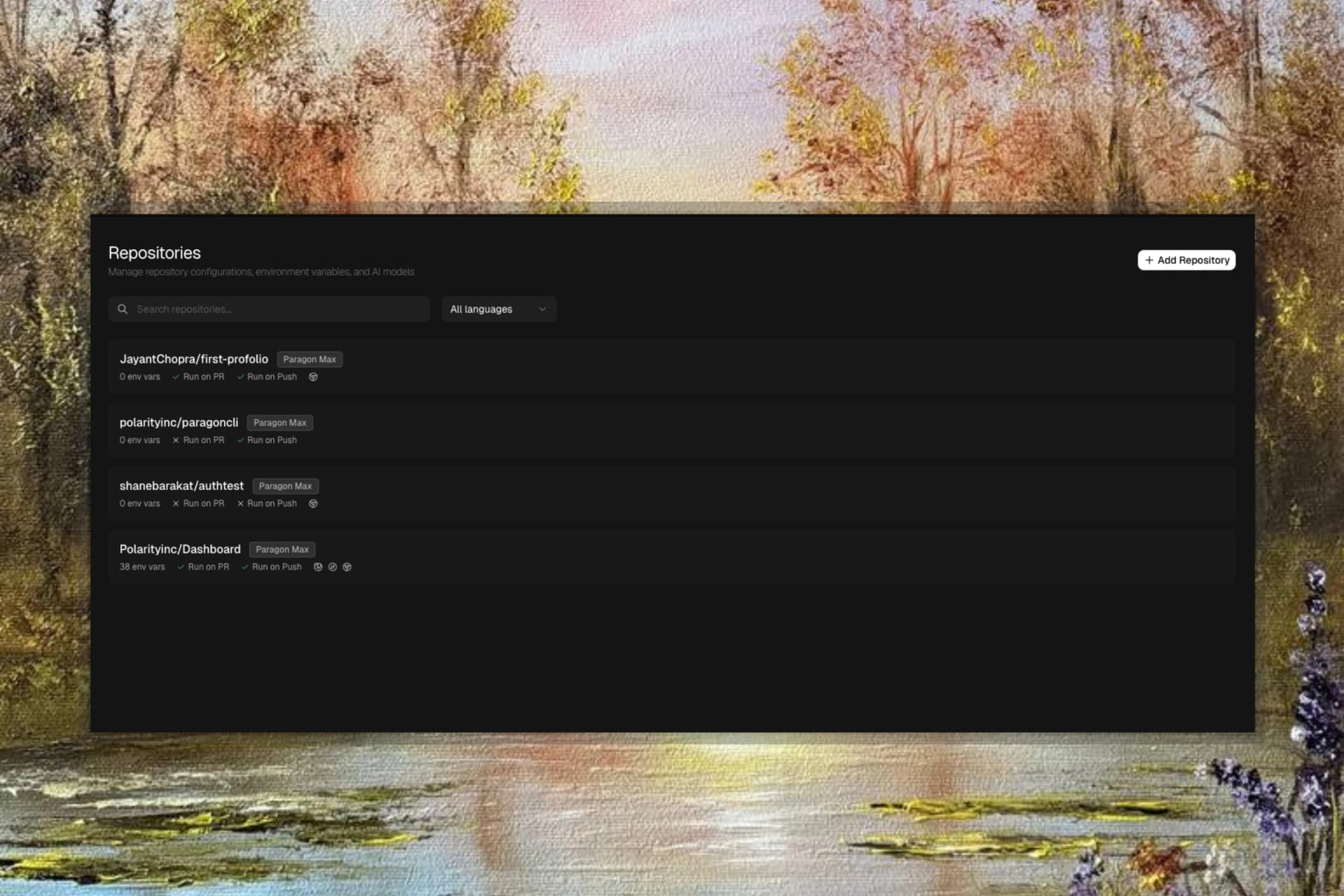
Add a Repository
- Go to Testing > Repos
- Click Add Repository
- Select a repository from your connected GitHub account
- Configure test runner and environment variables
- Click Add Repository to finish
Repository Settings
Model
Select which model to use for test generation:
| Model | Description | Usage |
|---|---|---|
| Paragon Fast | Quick responses, lower cost | Simple tests |
| Paragon MD | Balanced performance and cost | Most use cases |
| Paragon Max | Maximum capability | Complex test logic |
Base URL
The URL where your app runs. Required for E2E tests.
https://staging.myapp.com
https://myapp.vercel.app
http://localhost:3000
App Path (Monorepos)
If your app is in a subdirectory, specify the path:
apps/web
packages/frontend
Test Runner Settings
Configure how and when tests run automatically.
Run on PR
When enabled, code tests run automatically when:
- A new pull request is opened
- New commits are pushed to a PR
- A PR is reopened
Results appear as a GitHub check on the PR.
Run on Push to Production
When enabled, tests run when code is pushed or merged to your production branch.
- Enable the toggle
- Select your production branch (main, master, etc.)
Open Access
Allow external contributors (outside your organization) to trigger test runs on their PRs.
Only enable this for public repositories where you want community contributors to run tests.
Per-Suite Triggers
Control which test suites run on PR vs push:
| Suite | Run on PR | Run on Push |
|---|---|---|
| Auth Tests | Yes | Yes |
| API Tests | Yes | Yes |
| Performance | No | Yes |
This lets you run fast tests on every PR while reserving slower tests for post-merge.
E2E tests (step-based) cannot run on PR events because there's no deployed app to test against. They can only run manually, on schedule, or on push when targeting a production URL.
Environment Variables
Add secrets your tests need. Variables are encrypted and only decrypted at runtime.
Adding Variables
- Click "Add Variable"
- Enter the key name and value
- Paragon auto-detects secrets (names containing "key", "token", "password", etc.)
Bulk Import
Paste your .env file contents to import multiple variables at once:
API_KEY=sk-abc123
TEST_USER_EMAIL=test@example.com
TEST_USER_PASSWORD=secretpassword
DATABASE_URL=postgres://...
Never commit secrets to your repository. Use environment variables instead.
Evolving Tests Settings
Configure automatic test updates when code changes. See Evolving Tests for full documentation.
Enable Evolving Tests
Toggle to enable the evolve feature for this repository.
Auto-Run on PR
When enabled, Paragon automatically analyzes PRs and proposes test updates. When disabled, manually trigger with @paragon-evolve comment.
Open Access
Allow external contributors to trigger @paragon-evolve on their PRs.
Include Draft PRs
Run evolve analysis on draft PRs (disabled by default).
Excluded Branches
Branches where evolving tests won't run. Supports wildcards:
main
develop
release/*
hotfix/*
Managing Repositories
Edit Settings
Click on any repository to update its settings.
Remove Repository
Click the delete button to remove a repository. This removes all tests and run history.
Removing a repository from Testing does not affect your actual GitHub repository.
Next Steps
Import Tests
Import existing tests from your repository